Followers

Wednesday, January 28, 2026

OIC - Pull data using BIP Report into Data Management with Substitution variables

             How to pull data using BIP Report into Data Management with Substitution variables

  • Go to Data Exchange > Applications, Select Data Source and Select EPM(Custom)
  • In File, select BIP Report file which you are going to pull data. This column structure we need to pull data in to the system correctly.
  • Update Report details as shown below: Select ERP connection Name.
  • Select Execution Method as BIP Report and Report name along with Path
  • Parameter List, if not mentioned any, select unique in the columns like Period=Jan or dummy column with Y like shown below.

If we are planning to execute report data load like Jan-26, which we are going to load that using Data Management, we can mention below as an argument to pick up Period from POV of the Data load Rule.

argument1=$START_PERIODKEY[MMM-YY]$;

If we are planning to use Substitution variables to pass through arguments like above method, it will not work. Because this report is going to connect to ERP, but our variable needs to pick from EPM.

In case of using substitution variable in OIC to execute dataload rule, OIC will pick substitution variable from EPM to execute Data load rule, which will pass same to BIP Report also. In this case substitution variable will work. 


Thanks,
Mady

Oracle EPM - Data Management error tracing

 In Data Management, error tracing some times we will get confuse or forgot where to check. In that few I am recording here.

  • First of all, Process details log, where we will see process statement immediately after process completed. 
  • In Data load, if we get error [None] with Currency dimension, check location where you select import format, you remove [None] with functional currency.
  • Invalid period - means based on the period mapping, system doesn't able to match period with file inputs or source inputs.
  • While exporting and importing Period mappings, you may face with data format, which will change into excel number format or different date format, you can excel custom option to get DM date format, then you can import the same.
  • If you are getting Period in the file, then use Explicit Period option from Source Mapping to pick period from File and to match with Period mapping.
Thanks,
Mady

Tuesday, January 27, 2026

EPM - How to load Attributes in to PBCS application

                 How to load Attributes in to PBCS application

To load Attributes, prepare file like this.

Employee Number1, Alias, Permanent, Monthly

Employee Number2, Alias, contract, Hourly

Here 3rd, and 4th columns are attributes, which i am going to load along with Emp numbers and Alias metadata using Data Management/Data Exchange.


While creating application, select Dimensions and If needed use prefix.

As it will create dimensions, if you are going to load Custom dimension, select Custom and add Attribute name (Parent member of the attributes which you created in application) and assign UD1/2/3 depends on the no.of the Attributes columns you are loading.

So, create import format, where select Source and Target Dimensions and Attributes.

Note: Few you are getting blanks for few attributes, then generally we will write SQL in mapping, to ignore blanks, but here is the catch. If you ignore Attribute it will ignore that complete line. That means metadata also will not build. so, if you want to use to load metadata along with attributes, you must need one member in Attribute to assign for blanks in attribute list. Attribute will not duplicates also, so, if you want to use like NoAttribute1, and NoAttribute2 etc.

While loading metadata, you can ignore blanks not metadata members, so above tip will be helpful.

Load and Test once it's completed...!! 

Reference:
https://docs.oracle.com/en/cloud/saas/enterprise-performance-management-common/diepm/integrations_erp_async_integration.html#GUID-D9049165-6F30-43DD-B9F8-C52C01DFF2B8

Wednesday, January 21, 2026

EPM DM - File data load with Period and Year columns to EPM Planning

 EPM DM - File data load with Period and Year columns to EPM Planning.


If you are getting Period and Year in the source file itself, to load data we need to use Explicit option Data Load rule, which will connect to Source Period mapping, where we can update periods to match with source file.

No need of Period dimension in Import format for this method. Year you can map to Years.


If you are using multi-period in the file, update all periods in Source Period mapping.


For clear reference, refer below video:

https://www.youtube.com/watch?v=h-pHcRT6rgU


Thanks,

Mady

Tuesday, September 9, 2025

EPM DM - BIP Report as a Source to EPBCS

 EPM DM - BIP Report as a Source to EPBCS

As part of data loading we can pull data from different source systems. Using Data Source option, we can pull directly BIP report from Fusion application.

  • Create Source application with Oracle Cloud ERP(Custom), here we are creating source for workforce data. We need to upload and browse for the Report template, to get source columns as members of Source application.
  • Go to option, where we need to update Fusion application, fill other parameters as per report requirement.

  • Create an import format with Source and Target(EPBCS), map dimensions of source and target. 
  • Try to import data and check are we getting data or not. In case of any issue in pulling data, check Report permissions in ERP.

Thanks,
Mady

Friday, June 27, 2025

OIC - Business Rule

 How to execute Business Rule using OIC

Create and launch business rule without any issues. Then Navigate to Application and select Jobs. Create Job with business rule.

In OIC: Use below with Post method:

/HyperionPlanning/rest/v3/applications/NFPR/jobs

Request:

Json: 

{

  "jobType" : "RULES",

  "jobName" : "aso to bso dr"

}


Response:

{

  "status" : "",

  "jobId" : ""

}

To check Status:

/HyperionPlanning/rest/v3/applications/NFPR/jobs/{jobIdentifier}

Use Get Method, Attach JobId with JobIdentifier in mapping

Response:

{"status":"","details":""}


Thanks,

Mady

OIC - To place file in Amazon S3 Bucket

 To place file in Amazon S3 Bucket - we can use below method:

Use Put Object to place file into S3 Bucket.


Update Bucket Name in the below screen

Check Summary and click Finish.


In Mapping, Update details like this. File name you can mention directly, or if needed you can use along with folder name also like mentioned in below screenshot.


After executing you can check S3 bucket, to verify the file is placed or not.


Thanks,

Mady


OIC - Upload file

 To upload file into EPM inbox/outbox folder or into EPM - DM - inbox folder, we can use below:


/interop/rest/11.1.2.3.600/applicationsnapshots/{applicationSnapshotName}/contents

Needs to use Post Method

Request: Select Binary Method

Use Post with below response:

{

  "status" : "",

  "details" : ""

}


Thanks,

Mady


Wednesday, June 4, 2025

OIC - To get file from Amazon S3 Bucket

 To get file from AWS bucket:


You can use Get Object to pull file from AWS bucket.

Bucker Name and Object name, then in mapping you update same details.

If you upload file in the step, file will pushed to Target location from AWS bucket.

Thanks,
Mady


OIC - Application Admin Mode

 To upload file into EPM inbox/outbox folder or DM inbox folder:

Post:

/HyperionPlanning/rest/v3/applications/NiccoFPR/jobs

Request:

{

  "jobType" : "Administration Mode",

  "jobName" : "AppAdminJob",

  "parameters" : {

    "loginLevel" : "Administrators"

  }

}

In Mapping:


To make application into Admin Mode, Use Parameter as Administrators or to release application for all users, mention as All Users


Thanks,

Mady

OIC - Import Data

 To Import Data: we can use below with RESTApi - to execute from OIC

Post:

/HyperionPlanning/rest/v3/applications/NiccoFPR/jobs


Request:

{

    "jobType": "IMPORT_METADATA",

    "jobName": "ImportMetaDataJob",

    "parameters": {

    "errorFile":"ImportMetaDataErrorFile.zip",

"importZipFileName": "myMetaDataDailyJob.zip"

    }

}

Response:

{

  "status" : 0,

  "details" : "",

  "jobId" : 224,

  "jobName" : ""

}

Get Status:

/HyperionPlanning/rest/v3/applications/NiccoFPR/jobs/{jobIdentifier}/details

Import metadata status:

Response:

{

  "items" : [ {

    "recordsRead" : 0,

    "recordsRejected" : 0,

    "recordsProcessed" : 0,

    "dimensionName" : "Departments",

    "loadType" : "Metadata Import"

  } ]

}


Thanks,

Mady


Tuesday, May 20, 2025

OIC - Import metadata

 To import metadata using OIC - RESTApi, we can use below to automate the process.

To execute Import metadata, POST

                    /HyperionPlanning/rest/v3/applications/<appName>/jobs

Request:

{

    "jobType": "IMPORT_METADATA",

    "jobName": "ImportMetaDataJob",

    "parameters": {

    "errorFile":"ImportMetaDataErrorFile.zip",

"importZipFileName": "myMetaDataDailyJob.zip"

    }

}

Response:
{
  "status" : 0,
  "details" : "",
  "jobId" : 224,
  "jobName" : ""
}

To check status: GET
                /HyperionPlanning/rest/v3/applications/<appName>/jobs/{jobIdentifier}/details

Response:
{
  "items" : [ {
    "recordsRead" : 0,
    "recordsRejected" : 0,
    "recordsProcessed" : 0,
    "dimensionName" : "Dep",
    "loadType" : "Metadata Import"
  } ]
}

  1. Post - import metadata
  2. Get - Status
  3. Switch - if recordsRejected is 0, then success, Otherwise failed.

Thanks,
Mady


Thursday, March 20, 2025

Oracle EPM - How to add "No Year" in to EPM Planning application

 As you all know, we can't add additional member like "No Year" in Year Dimension. We can add number of years but not "No Year", as it is system defined.

But there is trick which Oracle published to add "No Year" in Year Dimension. 

Steps are simple:

  1. Export Year Dimension
  2. Edit csv file, and add below line in bottom of the page.
    • "No Year",Years,,store,false,,<none>,<none>,,,unspecified,false,true,,,"No Year",<none>,
  3. Save in zip format
  4. Import back in to Planning application.

Some times we may face issue with Data Management while loading SmartList data for BegBalance, like "No Year" member not found.


Thanks,
Mady

Tuesday, February 18, 2025

Oracle EPM - Data Extract from Planning using Data Management - Tips

 Hi All, Data Extract from Planning using Data Management already documented with steps. You can check that with below link. 

Data Extract from Planning using DM

Here, I am updating few steps, which may confuse for someone. 

  1. Source is our Planning application.
  2. Target we need to create as Data Export in Applications in Data Exchange page.
  3. File format which you will update must be with Period dimension.
  4. Amount or data - no need to mention, as system will automatically will take. If you mention in file it will show up in application details as member or dimension, which may show up double in Import Format.
  5. Period - select as Period not to be as generic like other dimensions in dimensions list.
  6. While creating data load rule, you can select filters, if you want to extract particular data.
  7. To pull alias of particular member, you select as below:
    1. Account -- map with Account member
    2. Account -- map with Account Alias member
  8. If you don't select Period as Period, and if it is generic in dimensions list, you will get amount in Period in Workbench.
  9. Some Alias may have names with comma, which will mess up exported csv file. Better to use Pipe symbol.
  10. You can use .txt format also to get data in correct format.

Thanks,
Mady

Wednesday, November 6, 2024

OneStream - Data Sources - Formats to load data

 We can load data using below methods into OneStream

  1. Fixed Format
  2. Delimited format
  3. Connectors
  4. Data Management
Fixed format, where you can find fixed spaces in the file which we will prepare or get from Sources.

Delimited Format, where you can find delimiters in the file, which we can the settings

Connectors, where you can write business rule to connect to the source system, using connection string details.

Data Management, where you can import, validate, load, etc to load data into OneStream.


Thanks
Mady

Thursday, August 1, 2024

Oracle EPM Planning (PBCS): Unable to download the file: details: Invalid file : FCC_2385.log

When trying load data from FCC to PBCS, I found below error in the logs, states that Unable to download the file along with Invalid log file.

Generally, This error occurred whenever we trying to pull data with no filters in Data load rule, so that lot of members/data will be involved to data load process from Source to Target.

 Planning log:

2024-07-31 09:34:05,019 ERROR [AIF]: Unable to download the file: {"details":"Invalid file : SFCC_2385.log.","status":1,"links":[{"href":"https://epm-test-axxxxx.epm.us.oraclecloud.com:443/interop/rest/11.1.2.3.600/applicationsnapshots/SFCC_2385.log/contents","action":"GET","rel":"self","data":null}]}

2024-07-31 09:34:05,023 INFO  [AIF]: EssbaseService.extractData - END (false)

2024-07-31 09:34:05,029 FATAL [AIF]: Error in CommData.extractDataFromSource

Traceback (most recent call last):

  File "<string>", line 2862, in extractDataFromSource

RuntimeError: false

URL in the above log showing invalid file, so when I verified in the FCC log, it is sating as below

FCC log:

2024-08-01 03:00:16,759 ERROR [AIF]: Cannot perform cube view operation. Essbase Error(1024015): Request [MdxReport] from user [epm_default_xxx_admin] was terminated by an admin user

2024-08-01 03:00:16,801 INFO  [AIF]: EssbaseService.extractData - END (false)

2024-08-01 03:00:16,801 ERROR [AIF]: false

2024-08-01 03:00:16,814 INFO  [AIF]: FDMEE Process End, Process ID: 2,385


Solution that Oracle suggested:

  1. In the Data load rule, create filters for each dimensions to export less number of records.
  2. Create multiple Data Load rules to export the data to the target application by applying different set of filters as needed.

Thanks,
Mady

Wednesday, July 17, 2024

EPM Planning - PBCS - How to create source application to FCC from Planning

 Creating source application is small part only, bit tricky I found, may be it is easy for others. It may be useful at least for beginners. Sometimes we forget things with on going activities, so you can found steps here..

Go to Data Exchange >> Actions >> Applications


Click on Add


Enter FCC URL, with out HyperionPlanning in the URL, enter username, password then click Refresh button which highlighted in the below screen shot.


Select your application in the next popup screen as shown below, then select Plan Types and Prefix if required.


Click OK, it will be popup in right side as Application Registered successfully.


Thanks,

Mady


Friday, July 12, 2024

OIC - How to schedule an Integration

 Scheduling an Integration in OIC also bit tricky, if you are working as a beginner. There are few limitations, as per Oracle mentioned, we cannot schedule integration within 10 minutes if you are using 


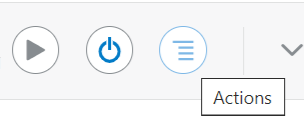
Click on 3 lines once you activated the Integration.

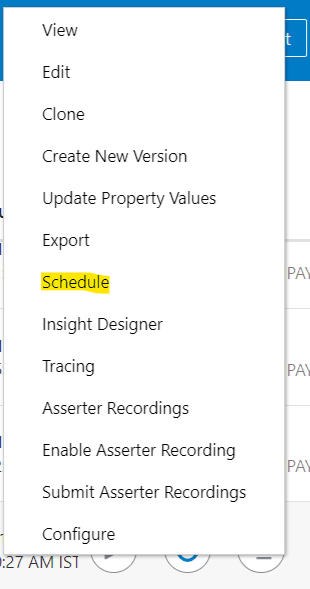
In the actions list, you can schedule, click on schedule.


Click on Edit button on the Top-right corner


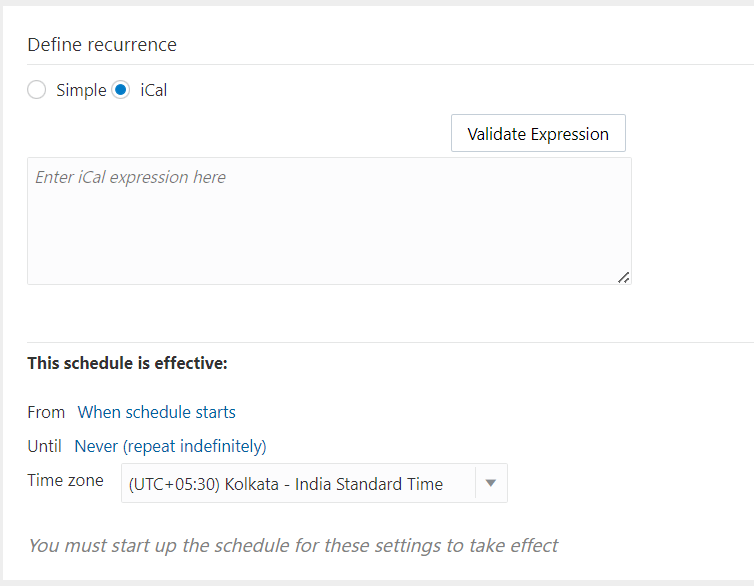
You can select Simple or iCal option to schedule as per you requirement.


In Simple selection, you can schedule the integration to execute in frequency of below mentioned and showed in screen shot.

  • Hours and Minutes
  • Days
  • Weeks
  • Months

In Case of, you want to schedule other than the default options in Simple, you can select iCal option, where you can update Expression to schedule the integration. 


For Example: To schedule integration to execute in weekdays, 2 times a day. you can use below code.

FREQ=WEEKLY;BYDAY=MO,TU,WE,TH,FR;BYHOUR=2,14;BYMINUTE=30;

Usage commands:
INTERVAL
BYSECOND
BYMINUTE
BYHOUR
BYDAY
BYMONTHDAY
BYYEARDAY
BYWEEKNO
BYMONTH
BYSETPOS
WKST

enddate = date
enddate =/ date-time ;An UTC value
byseclist = seconds / ( seconds *(“,” seconds) )
seconds = 1DIGIT / 2DIGIT ;0 to 59
byminlist = minutes / ( minutes *(“,” minutes) )
minutes = 1DIGIT / 2DIGIT ;0 to 59
byhrlist = hour / ( hour *(“,” hour) )
hour = 1DIGIT / 2DIGIT ;0 to 23
bywdaylist = weekdaynum / ( weekdaynum *(“,” weekdaynum) )
weekdaynum = [([plus] ordwk / minus ordwk)] weekday
plus = “+”
minus = “-”
ordwk = 1DIGIT / 2DIGIT ;1 to 53
weekday = “SU” / “MO” / “TU” / “WE” / “TH” / “FR” / “SA”


Thanks,
Mady


Wednesday, July 3, 2024

Oracle EPM Planning/PBCS - Data not showing up in Data Management Workbench

 In Data Management, workbench if it shows, Gold fish, we will be happy as much as we earn Real GOLD or Gold Fish. Why because, Data Management will show this gold fish after lot of steps only, if you do correctly. Otherwise, even you can't find out the issue at which step it is failing, not every time, but some times. 

This post is about simple step only but, we must know that we need to enable these option to see data, otherwise even though Gold fish is showing up, you can't see data in workbench, you don't even know about what happening, whether it is working or not.

If you are extracting data from Planning, and data not showing up in workbench, then check below steps to enable or see the data.

Navigate >> Click on Data Exchange in Application section >> Actions >> Applications >> Click ... 3 dots(last column, under actions) in particular application then Select Application Details >> Select options >> Select Workflow Mode as full, then only you can see data in Data Management Workbench.


Thanks

Mady


Tuesday, July 2, 2024

Oracle EPM Planning/PBCS - Error Resolutions in Data Management

 While we work on Data Management, more often we will face these issues:


As these Message Number and Contents are self-explainer, as I found some information, I am posting here, 2 issues solution.

Error 3303: This issue is about member not found, which means member itself is missing in the database. 

Solution: So, We can add member in dimension, and try to load again.

Error 3335: Mapped target dimension member does not exists (or) the same member name exists in more than one dimension. 

Solution: Check whether the mapping is defined properly, target value mentioned in Mapping should exist in Target Application. Also, check that the same member name does not exists in more than one dimension. 

We will add more....

Thanks,

Mady