Followers

Monday, January 30, 2023

Drill through using Data Management from EPBCS to ERP Cloud

 Drill through using Data Management from EPBCS to ERP Cloud

Source System

  •         Go to Setup -> Source System -> Click on Add
  •         Mention Source System Name, Description is optional
  •         Then Select Source System Type as Oracle ERP Cloud
  •         Update Drill Through URL with ERP Cloud URL. 
  •         Click on Configure Source Connection and Enter credentials in the popup.
  • Click on Test Connection and wait for configuration successful message.

     Now, Click on Initialize to connect to the Source System. This process will monitor in Process details tab. Check process is successful or not. This process will create below process in Target application.

  •      Create Location, select Import Format. and Save

    Go to Workflow, Data Load Mapping first, select Location, Period and Scenario. Then Map all source members with Target dimension members. Mainly we are doing this process for Drill back, So, in Account dimension, map all members correctly.

  •     Create Data Load Rule, Execute the rule.

Once it is successful, you can check workbench to verify the data.

Validation:

Once Data Load Rule is successful, we need to validate Drill through process.

       Go to Workbench -> Data Column

        Right click on data column and click on Drill Through to Source Option

Once we click on this, it will take to Source System page.

Other than this, we can test the same from DATA FORM also.

Thanks,

Mady


Friday, January 13, 2023

OneStream - Application Back up automation

++++++++++++++++++++++++++++++++++++++++++++++++++++++++++++++++++++++++++++++++

Imports System

Imports System.Data

Imports System.Data.Common

Imports System.IO

Imports System.Collections.Generic

Imports System.Globalization

Imports System.Linq

Imports Microsoft.VisualBasic

Imports System.Windows.Forms

Imports OneStream.Shared.Common

Imports OneStream.Shared.Wcf

Imports OneStream.Shared.Engine

Imports OneStream.Shared.Database

Imports OneStream.Stage.Engine

Imports OneStream.Stage.Database

Imports OneStream.Finance.Engine

Imports OneStream.Finance.Database


Namespace OneStream.BusinessRule.Extender.XFR_ExportAppMetadata

Public Class MainClass

'------------------------------------------------------------------------------------------------------------

'Reference Code: XFR_ExportAppMetadata

'

'Description: Extender business rule that all application metadata to a zip file for the current application.

' The files are written to the application Data Mgmt Export folder in the file share directory.

'

'Usage: Can be executed from Business Rule editor or run as part of a Data Management sequence.

'

'Created By: <Your name>

'Date Created: <xx-xx-xxxx>

'------------------------------------------------------------------------------------------------------------

Public Function Main(ByVal si As SessionInfo, ByVal globals As BRGlobals, ByVal api As Object, ByVal args As ExtenderArgs) As Object

Try

Select Case args.FunctionType

Case Is = ExtenderFunctionType.Unknown, ExtenderFunctionType.ExecuteDataMgmtBusinessRuleStep

'Prepare the Stage Data Extract File path

Dim configSettings as AppServerConfigSettings = AppServerConfig.GetSettings(si)

Dim folderPath as String = FileShareFolderHelper.GetDataManagementExportUsernameFolderForApp(si, True, configSettings.FileShareRootFolder, si.AppToken.AppName) & "\" & DateTime.UtcNow.ToString("yyyyMMdd") & "\MetadataExtracts"

if Not Directory.Exists(folderPath) then Directory.CreateDirectory(folderPath)

Dim filePath as String = folderPath & "\" & DateTime.UtcNow.ToString("yyyyMMdd") & " " & si.AppToken.AppName & ".zip"

If File.Exists(filePath) Then File.Delete(filePath)


'Set the extract options

Dim xmlOptions as New XmlExtractOptions

xmlOptions.ExtractAllItems = True


'Execute the Metadata Extract

Using dbConnFW as DBConnInfo = BRAPi.Database.CreateFrameworkDbConnInfo(si)

Using dbConnApp as DBConnInfo = BRAPi.Database.CreateApplicationDbConnInfo(si)

Dim zipBytes as Byte() = ApplicationZipFileHelper.Extract(dbConnFW, dbConnApp, Nothing, xmlOptions)

'Append the contents of this workflow profile to the extract file

Using FS As New FileStream(filePath, FileMode.Append, FileAccess.Write)

'Create a binary writer, and write all bytes to the FileStream at once

Using BW As New BinaryWriter(FS)

BW.Write(zipBytes)

End Using

End Using

End Using

End Using

End Select

Return Nothing

Catch ex As Exception

Throw ErrorHandler.LogWrite(si, New XFException(si, ex))

End Try

End Function

End Class

End Namespace

++++++++++++++++++++++++++++++++++++++++++++++++++++++++++++++++++++++++++++++


Reference link: 

https://community.onestreamsoftware.com/t5/Rules/Automating-Application-Back-up/td-p/7980


Thanks,

Madhusudhan

Thursday, January 12, 2023

PBCS - Migration - with dimension name change

To change dimension name while doing Migration from One Environment to Another.

1. Download the snapshot zip file from existing pod on your local machine

2. Unzip the snapshot file on your machine location

3. Download a utility named fart.exe (find and replace text)

4. Run the command in the following way 

a. C:\>fart.exe -r -c -- C:\Backup_Snapshot\* "Dimension A" "Dimension B" 

5. The above will replace all occurrences of Dimension A with Dimension B

6. There will be one dimension file in the folders named Dimension A.csv, rename it to Dimension B.csv

7. Zip the entire folder again, the structure should resemble that of original snapshot zip file

8. Import that structure in new environment and perform migration. 

9. It will succeed with some access related failures, that you can ignore

10. Open the application, validate the forms etc, check rules and Data Integration execution


Validation:

 - Data Forms, Dashboards, Navigation Flows - Migration will be successful

 - Dimensions - Members not same - Mainly in Account dimension some members missing.

 - Rules - In some rules may not change dimension name in Agg function mainly I observed.

 - In Calculation Manager, check Database properties - Member blocks, block size, no.of clocks etc

 - Data Management - Data Load Rules not showing up, Please validate all settings: Source system, Target Application, Import Format, Location, Data Load Rule, Data Load Mapping etc.


Thanks,

Madhusudhan

Sunday, January 8, 2023

EPM Planning Cloud - Application Migration and Export artifacts

 Migration from one environment to another. Take Snapshot to take entire application backup, or If you want to separate artifacts also you can export and take backup with this option - SnapShot.

  1. Download Snapshot from Existing Pod
  2. Upload Snapshot to New Pod
  3. Once upload is completed, right side go to Actions >> Import 
  4. Once Import is completed, then validate application below points

  • Check Refresh Database
  • In Rules, Click on Database Properties. Check Enterprise View and check General, Statistics, Dimension members for all cubes.

We can Export dimension members using below steps:

Navigate >> Application >> Overview >> Dimensions >> Export/Import -- using this option we can export or import dimension members.


Thanks,

Madhusudhan

Tuesday, November 22, 2022

PBCS - Smart Push Option

In Oracle EPM Planning, we often have a requirement to move data from one cube to another. Earlier, we mostly used calculation scripts or other data movement processes for this purpose.

For example, we may need to move data from BSO to BSO, or more commonly from a BSO planning cube to an ASO reporting cube.

In newer versions of Oracle Planning and EPM Cloud, we have a useful feature called Smart Push which makes this process much easier.

What is Smart Push?

Smart Push allows us to move data from one cube to another directly from the Planning application.

For example, let's say we have:

Plan1 – BSO Cube
This is where users enter data and calculations are performed.

Reporting – ASO Cube
This cube is mainly used for reporting and analysis.

After users enter or update the data in the BSO cube, we can use Smart Push to move the required data to the ASO reporting cube.

So the flow will be:

Plan1 (BSO) → Smart Push → Reporting (ASO)

This is much easier compared to creating and maintaining separate calculation scripts just for moving the data.

Using Smart Push with Data Forms

One useful thing about Smart Push is that we can associate it with the data form itself.

Smart Push can be used with Planning forms, including Simple Forms and, depending on the Planning version and configuration, Composite Forms.

We can define what data needs to be moved and map the source and target dimensions accordingly.

Run Smart Push When the Form is Saved

Another useful option is Run on Save.

When this option is enabled, Smart Push will run automatically after the user saves the data form.

For example:

User enters data → Saves the form → Smart Push runs → Data moves to the target cube

This is useful when we want the reporting cube to receive the latest data immediately after users update their planning data.

If we don't want Smart Push to run every time the form is saved, we can also allow users to run it manually when required.

Where I Find Smart Push Useful

In my experience, Smart Push is particularly useful when we have a BSO cube for planning and calculations and an ASO cube for reporting.

Instead of creating a separate process every time we need to move data, Smart Push gives us a simpler way to push the required data from the Planning form.

Of course, calculation scripts and other data movement methods are still required in many situations. Smart Push doesn't replace every data movement process.

But when the requirement is simply to move the required planning data from one supported cube to another, Smart Push can make the process much easier.

Things to Check When Configuring Smart Push

Whenever I configure or troubleshoot Smart Push, I normally check:

  • Source and target cubes
  • Dimension mappings
  • Members selected for the data movement
  • Smart Push data region
  • Run on Save option
  • User access and security
  • Job status if Smart Push fails

If Smart Push is not working as expected, checking the mappings and the selected data region is a good place to start.

Final Thoughts

Smart Push is a simple but very useful feature in Oracle EPM Planning.

Earlier, we depended more on calculation scripts and other processes to move data between cubes. With Smart Push, we can configure the data movement as part of the Planning form and push data when required.

It is especially useful when working with a BSO planning cube and an ASO reporting cube, where users need their latest planning data available for reporting.

I am documenting this here based on my Oracle EPM experience, and I will continue adding more Smart Push tips and troubleshooting scenarios as I come across them.

Thanks,
Mady

Sunday, November 13, 2022

OneStream Admin Screen

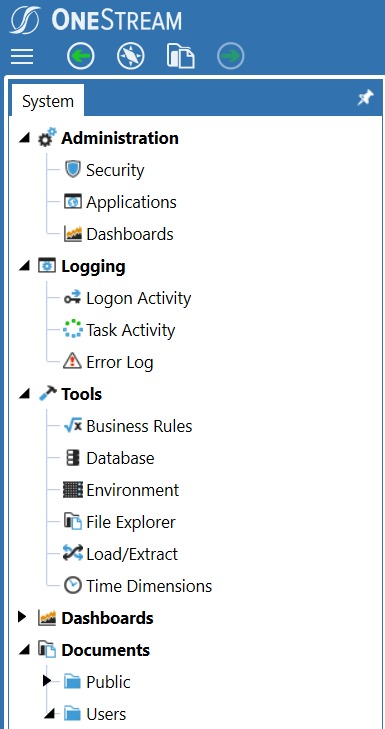
 OneStream System Administration will be handled by below, which Admin only can access.


All Security, Application Creation, Database Creation, Logging activities, Logs, Environment details, We can check and monitor server is Server Status, then we can create users, create security groups, assign security groups, Load Application artifacts, Extract Artifacts etc.

Thanks,
Madhusudhan

Tuesday, November 8, 2022

OneStream Basics1

             Some basics you can find here, which we will update regularly.

In OneStream, We can access URL in 3 types.

  • Desktop Version with help of Client
  • Web URL - Heard that Web URL going to discontinue in few days, as silver light support needed for the same
  • Excel like SmartView in Hyperion
In OneStream, We can download client software from MARKETPLACE. Once you login, you can OneStream Reference guide (Like Admin guide in Hyperion)

In OneStream, Totally 18 Dimensions will be there, including Custom Dimensions.
  • System Defined Dimensions    - Parent, Consolidation, Time, View, Origin, IC
  • User Defined Dimensions        - Entity, Scenario, Account, Flow, All User Defined Dimensions 8
In OneStream, System Defined Dimensions will create default whenever we create User Defined Dimensions. For Example:
  • Parent Dimension will create by creating Entity. 
  • Consolidation dimension will create by creating Currency. 
  • Once we define Start and End Year in Application Properties, Time dimension will get create by the system Years along with Months
  • View Dimension will create by system along with Periodic members QTD, YTD etc. This dimension will expect anything like above dimensions, view dimension completely create by system.
  • Origin Dimension also as View Dimension, System will create automatically. We need to tell the system about from when data is coming from, like import or Forms etc.
  • IC - Inter Company - Which we need to tell system about the Entity as it is Inter Company or not.
In OneStream, like Hyperion we don't have Year and Time Dimension. Here only Time will dimension will get create Years along with Months like 2021M3 - Mar 2021

Thanks,
Mady